

Slack Bot
The RunReveal Slack bot brings Native AI Chat into Slack. After you install the bot and link your account, you can DM the bot or @RunReveal mention it in a channel to run investigations with the same agent tools you use in the console, without leaving the conversation where the alert or question landed.
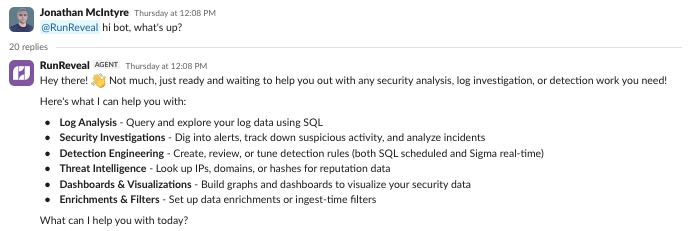
Not the same as Slack alert delivery. Detection alerts can use the Slack Bot notification channel (Block Kit via the installed app) or an Incoming Webhook. This page covers the interactive Slack bot (agent chat + account linking).
What it does
The bot is a first-class surface for the same investigation agent that runs in the RunReveal UI:
- Ask in natural language: query logs, triage detections, explore schemas, and create investigations from Slack
- Keep thread context: each Slack thread maps to one RunReveal chat, so follow-ups reuse prior turns
- Confirm before mutating: create/update/delete actions require an explicit Confirm & Proceed click
- Respect RBAC: DMs run as your linked user role; channel mentions are capped by the bot role chosen at install
- Share history with the console: Slack and the web UI write to the same chat; continue an investigation in either place
| Capability | Behavior |
|---|---|
| Direct messages | Message the bot in a 1:1 DM to start or continue an investigation thread |
| Channel @mentions | Mention @RunReveal in a channel; the bot replies in that message's thread |
| Thread context | Each Slack thread maps to one RunReveal chat, so follow-ups keep prior turns |
| Confirm mutating actions | When the agent asks permission to create/update/delete, click Confirm & Proceed |
| Shared with the web UI | Slack and the console write to the same chat history (web edits are not mirrored back into Slack) |
Common use cases
An alert lands in #security-alerts. In the same thread, mention the bot so it sees the root message and starts investigating:
Follow up in-thread without re-pasting context:
Prefer short confirmations in shared channels (for example, "Investigation created → link") rather than pasting sensitive data inline.
Example prompts
@RunReveal summarize this alert and suggest next stepsWho authenticated from unusual geos in the last 6 hours?Correlate this IP with firewall and identity logs for the past day
Requirements
- The Slack bot must be enabled for your workspace (contact RunReveal if you do not see a Slack bot row under Settings → AI Settings)
- An operator (or admin) to install the bot
- A configured AI model provider under Settings & More → AI Settings. See the Native AI Chat setup guide
If no AI model is configured, the bot replies: No AI model is configured for this workspace. An admin can set a default in RunReveal AI settings.
Setup
Step 1: Install the bot
- In RunReveal, go to Settings → AI Settings and open Slack bot under Where your team uses AI
- Under Connection, choose a Bot role. Slack actions in shared channels are limited to this role's permissions
- Click Install to Slack and approve the Slack OAuth consent screen
- When you return to RunReveal, the Slack bot panel opens and shows the connected Slack workspace, bot role, bot user, and install date
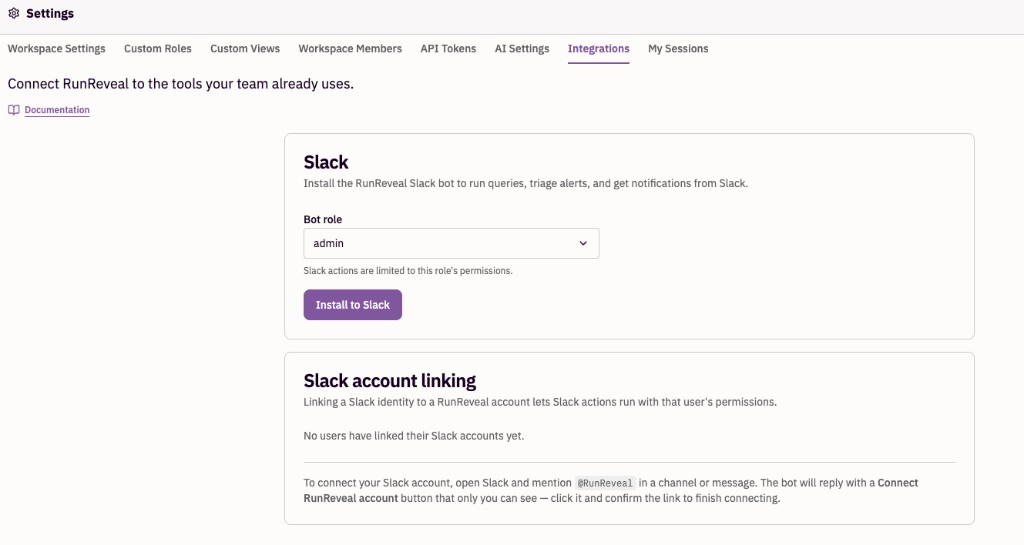
Operators can Reconnect (re-run OAuth with the same or updated scopes) or Uninstall later from the same card. Editing the bot role applies immediately. You do not need to reinstall.
Step 2: Link your Slack account
Every person who uses the bot must link their own Slack identity to their RunReveal account:
- In Slack, DM the bot or mention
@RunRevealin a channel - If you are not linked, the bot shows a Connect RunReveal account button only you can see
- Click the button, sign in to RunReveal if needed, review the workspace and Slack team, then click Link accounts
You can unlink yourself anytime from Settings → AI Settings → Slack bot → Slack account linking. Unlinking someone else requires Slack bot write permission (slackbot#edit).
Step 3: Start investigating
- DM: open a conversation with the RunReveal bot and ask a question
- Channel:
@RunReveal show failed logins in the last hour(or similar); reply in the thread and@mentionagain for follow-ups - When the agent asks to proceed with a mutating action, click Confirm & Proceed
Permissions
See Role Based Access Control for the full default-role permission table (admin, analyst, operator, cibot).
| Who | What they can do |
|---|---|
Operator / admin (slackbot#edit) | Install, reconnect, uninstall; change bot role; unlink other users |
Analyst+ (slackbot#read) | View connection details and the list of linked users |
| Any workspace member | Link or unlink their own Slack account |
How the bot chooses a role for each turn
- Private DM (1:1): the agent runs as the linked user's RunReveal role (their own permissions)
- Channel @mention or group DM: the agent runs under the bot role chosen at install time
In all cases, the linked user must still be allowed to act (their permissions intersect with the bot role). Role changes take effect on the next Slack message.
Authorization is not confidentiality. Bot replies in a channel thread are visible to everyone in that channel, regardless of RunReveal permissions. Use DMs for sensitive queries or detailed agent output.
Using the bot in channels
- The bot only responds when @mentioned. Ordinary replies that do not mention the bot are not sent to the agent
- The first mention inside an existing Slack thread seeds the chat with that thread's root message so the agent has context (for example, an alert posted earlier in the thread)
- Later mentions in the same thread reuse the mapped RunReveal chat
- Prefer short confirmations in shared channels (for example, "Investigation created → link") rather than pasting sensitive data inline
Managing the connection
| Action | Where |
|---|---|
| Change bot role | Integrations → Slack → Edit next to Bot role → Save |
| Reconnect (refresh OAuth / scopes) | Integrations → Slack → Reconnect |
| Uninstall | Integrations → Slack → Uninstall. Removes the Slack app install and all user links for that Slack team; underlying RunReveal chats remain in the web UI |
| View linked users | Integrations → Slack account linking |
Related
- Native AI Chat: console agent, providers, and tools
- Role Based Access Control: default roles and permission table
- Slack Bot notification channel: detection alerts via the installed bot (Block Kit)
- Slack notification channel: webhook-based detection alerts to Slack
- Slack log source: ingest Slack audit / activity logs into RunReveal
- API reference: Slackbot: install and user-link API operations